Loot Filter Setup Checklist
Track seven local installation checks separately for PoE 1 and PoE 2, and copy or download a progress report; ticks cannot verify the client.
Workspace
Your filter input is processed in this browser, not sent to the website for analysis.
Local setup checklist
Progress is saved only in this browser. Windows path examples are community-reported, not currently client-verified: Documents\My Games\Path of Exile or Documents\My Games\Path of Exile 2. Prefer the client folder-opening control if available. Console, Mac and Linux steps are not verified.
Community-reported Windows example: Documents\My Games\Path of Exile. Confirm the active folder in your client.
This interactive tool needs a modern browser with JavaScript and local worker support. Processing stays on your device.
Verification note: Documentation reviewed 2026-09-30; installation paths and current client controls require local verification.
A checklist records work, not proof of installation
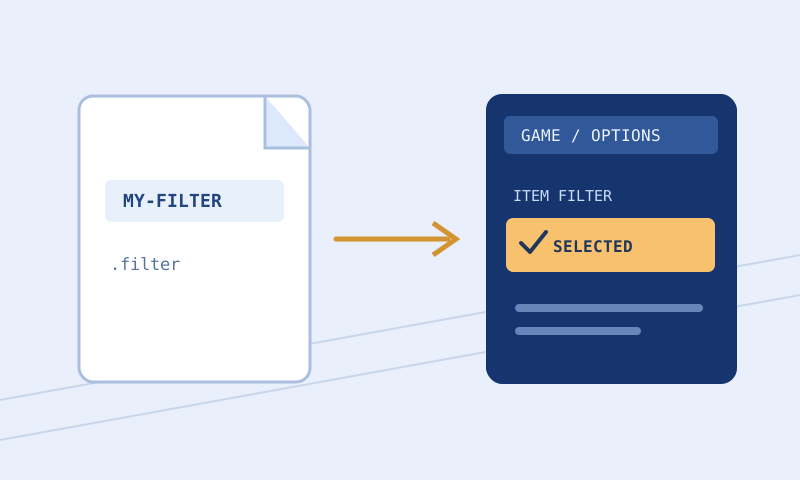
Use this seven-step checklist to keep track of local loot-filter installation for PoE 1 or PoE 2. It separates preparing a file, finding the correct directory, selecting the filter, and observing the result. Ticking a box is your own record of a completed check; it does not let this website inspect your filesystem or confirm that the client accepted a file. The same checklist appears alongside fuller instructions in the installation guide.
PoE 1 and PoE 2 tabs maintain separate progress in local browser storage. The folder hint changes with selected game. Copy result and Download result save the visible text progress report, not a filter or installation certificate. If you need a durable installation record, keep that report together with actual exported revision and notes on what client displayed.
Use controls in installation order
Choose the tab for the game you are actually launching. Read seven checkboxes before marking any complete. First export a file for correct game and mode. Next locate the active item-filter folder, using a client folder-opening control if available. Then inspect full filename and .filter extension, locate client selector, select and reload, read any errors, and finally check important real drops and upgrades. These checks distinguish a saved file from an actively used one.
The example Windows location shown under tabs is community-reported: Documents\My Games\Path of Exile for PoE 1 or Documents\My Games\Path of Exile 2 for PoE 2. It is not a verified universal path. Documents can be redirected or synchronized, and different operating-system users can have different directories. If your client offers a folder-opening control, use that to identify its actual location. The checklist does not establish console, macOS, Linux, cloud-client, or compatibility-layer support.
Tick each checkbox only after verifying described action. Progress report updates as you tick. Reset clears current view’s checkboxes and saves new state for selected game. Undo can restore a prior changed input in the current interface, but local browser storage is not a reliable long-term audit trail. If you switch games, confirm selected tab before marking or resetting progress. Clearing storage, changing browser profiles, or private browsing can make saved ticks disappear.
Worked example: a file not listed
Suppose you exported a PoE 1 starter file and copied it into the folder you believe is active. File manager displays PoE1-Progression.filter, but client selector does not list it. Do not tick selection step. First enable visible filename extensions or inspect file properties. If its full name is PoE1-Progression.filter.txt, it is still a .txt file despite misleading display. Save or rename a plain-text copy with a single .filter extension, check that its contents are filter instructions rather than a web page, and retry in the client-confirmed directory.
Now imagine the correct extension is visible but there are two plausible Documents folders. Do not solve this by repeatedly moving files between guessed paths and checking every box. Compare complete path with what current client opens, including operating-system user and redirected Documents location. Leave folder checkbox incomplete until you know which directory the client reads. If the file appears after correction, that verifies discovery, not successful parsing or desired loot behavior.
What progress output says
Before boxes are checked, output begins poe1: 0/7 completed on PoE 1 tab and lists each step with [ ]. After verifying correct extension and ticking that step, its line changes to [x] and completed count increases by one. Switching to PoE 2 shows its own count and checkbox state. These counts describe manual browser selections; they do not inspect an extension, query the client, or guarantee that a step was done correctly. A report showing 7/7 is a reminder of what you marked, not independent proof of installation.
Use Copy result to paste current report into private troubleshooting notes or Download result to retain a plain-text .txt copy. Neither exports a .filter file. If sharing the report, add game, filename, revision, and exact client error yourself; checklist does not record those details. Re-check completed steps after moving computers, changing your game installation, or replacing selected filter. Previous success does not carry over automatically.
Listed but unable to load
If filter appears in selector but client displays an error, leave load/error step incomplete. Preserve exact client message and file the client was given. Open that same file in Filter Validator with correct game and mode, correct a clear syntax mistake, and save a new revision. Repeatedly moving the same invalid file between folders will not fix its language. Validation is only a supported browser subset; confirm repaired file in client after reloading.
If file loads yet looks unchanged, check selected filename and reload after editing. If two similarly named revisions exist, use Filter Compare to see whether installed text contains the new style or visibility instruction. A checked browser box cannot distinguish an old active file from a new one. Do not erase your known working revision merely to remove confusion; give experiments explicit names and preserve rollback until the new file behaves as intended.
Verify the right behavior, not just a colorful label
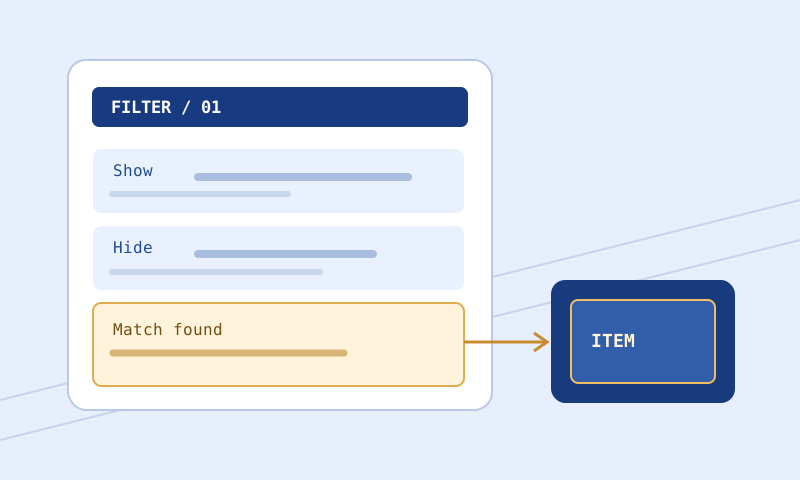
A successfully colored drop establishes that at least one styling path worked for one item. It does not prove every intended Hide is safe or a custom sound exists. Before installation, Filter Rule Explorer can help locate the written Hide blocks in a downloaded file by line and instruction keyword; it cannot evaluate an item, resolve imports, or establish reachability. Check a known upgrade or important crafting base before trusting restrictive policy. If a sound is silent, confirm a matching item reaches its action, then review relative filename, asset placement, and game settings. Browser validation of a sound instruction cannot inventory the game’s audio folder.
Keep previous filter selectable while trying an aggressive revision. If a wanted category disappears after preset change, return to permissive file and investigate exact rule instead of assuming drops became rarer. Item Tester provides a bounded trace for complete English copied item, but it is not a full game simulator. Final checkbox should reflect deliberate observation of items that matter to you, not merely absence of parser error.
Example: replacing a working revision
Assume you have a working PoE 1 file called Progression.filter and a proposed edit called Progression-Review.filter. Keep both copies, compare their Hide blocks, validate the proposed text, and note which file is selected in the client. Do not carry over all seven previous ticks to the new revision as if installation evidence automatically transferred. Confirm its extension and directory again, reload that specific filename, read any new client message, then test the item category the edit was meant to affect. If the observation differs from your expectation, reselect the older file and record the discrepancy before further edits. The checklist tracks these steps, not the evidence itself.
Questions and next steps
Does this install a filter? No. It records local actions and cannot choose a client setting or synchronize an account. Are Windows paths official guarantees? No; confirm active folder in your client. Does a full checklist survive browser cleanup? Not necessarily; progress is local to this browser’s storage. Can I use the same completed state for both games? No; separate tabs exist because paths, files, and game-specific rules require their own verification.
Prepare a file in Loot Filter Builder, read the safe edit guide and the full installation guide, and use the PoE 1 or PoE 2 guide for game-specific decisions. For filter-language questions consult GGG’s reference. September 30, 2026 documentation review is not a claim that a current client’s folder, menu, or filter behavior was tested here.