How to Install a Loot Filter for Path of Exile 1 or 2
Follow a cautious local-file workflow: export, confirm your client folder, inspect the extension, select and reload, then test with a backup ready.
Last reviewed: 2026-09-30. Verification note: GGG language documentation reviewed 2026-09-30; installation paths and current client interface not verified in game.
Setup checklist
Track the steps on this device, then verify the filter appears in your game client.
Local setup checklist
Progress is saved only in this browser. Windows path examples are community-reported, not currently client-verified: Documents\My Games\Path of Exile or Documents\My Games\Path of Exile 2. Prefer the client folder-opening control if available. Console, Mac and Linux steps are not verified.
Community-reported Windows example: Documents\My Games\Path of Exile. Confirm the active folder in your client.
This interactive tool needs a modern browser with JavaScript and local worker support. Processing stays on your device.
Know what this installation guide can confirm
Installing a loot filter means making a valid filter available to the correct game client and selecting it there. Downloading a file is only the first part. A successful setup also depends on the destination directory, filename extension, supported language, current selection, and reload state. This guide separates those checks so that you can diagnose a failure without repeatedly downloading the same file.
This is an independent local-file workflow, not an official installer or account-sync service. The site’s research reviewed GGG’s filter language documentation on September 30, 2026. It did not verify a current game patch, run either client, or establish current staff-authored installation instructions. Windows directory examples and menu descriptions below remain qualified. Confirm the controls and paths on your own installation before treating a step as complete.
Before you begin
Confirm the game, platform, and purpose
Decide whether the file is for Path of Exile 1 or Path of Exile 2. They share some syntax but not an interchangeable set of item classes and conditions. A filename containing the right game is helpful but does not prove the contents match it. Check the export’s game selection and any header notes, then validate with that game selected.
Confirm that your platform supports the local-file route you intend to use. A Windows example does not establish equivalent instructions for console, macOS, Linux, a compatibility layer, or a streamed client. If your platform exposes a different supported filter-management workflow, use current platform-specific guidance. Do not try to force a desktop directory procedure onto an environment that does not offer filesystem access.
Keep an escape route
Make a backup of your working filter before editing or replacing it. Give the proposed file a distinct name so that both revisions can remain available while you test. Your backup should not be another copy that an automatic save operation will overwrite. A separate revision outside the active game folder provides a clearer rollback path.
Write down what you expect to change: one new highlight, reduced ordinary-item clutter, or a quieter alert category. This makes the later observation meaningful. If your only expectation is that the new file should be better, you will have difficulty distinguishing successful installation from a rule-design problem.
Step 1: export a plain-text filter
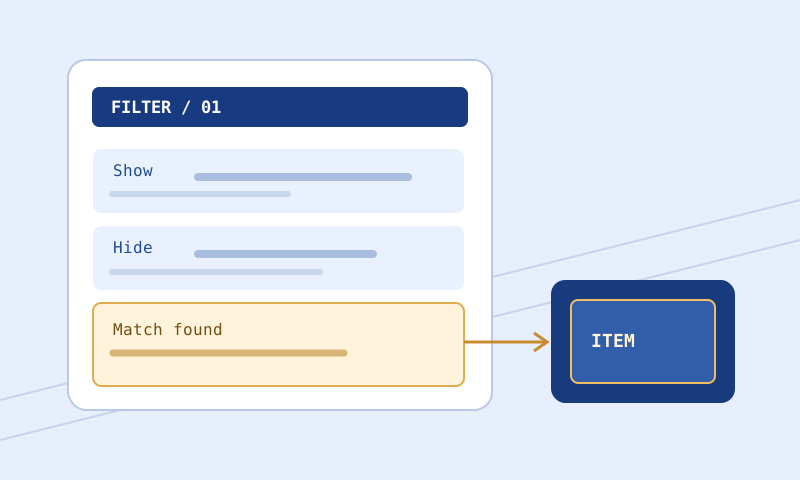
Use the Loot Filter Builder or your own reviewed filter source to produce the file. This site’s output is original starter data, not live economy tiering. Review the categories before export, particularly any Hide decisions. A file can install perfectly while hiding something your character needs.
Save the output as plain text with a .filter extension. A rich-text document, a saved HTML page, or a compressed archive renamed to .filter is not equivalent. If you copied text into an editor, use a plain-text mode and inspect the first few lines. Comments and filter blocks should appear as ordinary text, without document markup surrounding them.
Use a name that is easy to recognize in the client selector. Include the game or activity if you maintain several filters. Avoid relying only on a download suffix such as a parenthesized number because it does not explain the file’s purpose. Keep the original exported file available until you have confirmed that the installed copy matches it.
Step 2: confirm the actual destination folder
Prefer a folder-opening control in the current client, if one is available, over a path copied from an old guide. A client-provided control can reveal the directory that installation actually uses. Read the complete path and verify the operating-system user. A folder with the right final name under the wrong profile is still the wrong destination.
Community guidance commonly describes Windows locations resembling Documents\My Games\Path of Exile for the first game and Documents\My Games\Path of Exile 2 for the second. These examples are not confirmed universal current paths. Documents can be relocated, redirected to synchronization storage, or represented differently by the file manager. Community posts hosted on GGG’s forum are not automatically staff-authored instructions.
Do not create several similarly named directories and copy the file into all of them as your first troubleshooting method. That hides the underlying uncertainty and leaves stale revisions scattered around the machine. Instead, identify which directory the actual client reads and record that location. If the current interface provides no clear clue, consult current official platform guidance before proceeding.
Step 3: inspect the full filename
Place the plain-text file in the confirmed location, then inspect its complete extension. File managers sometimes hide known extensions, so MyFilter.filter.txt can look like MyFilter.filter. Enable extension visibility or inspect file properties. The meaningful check is the complete stored name, not the shortened label displayed in a convenient view.
Check that your text editor did not create a second copy in another folder when saving. Also check synchronization status if your user documents are managed by cloud software. A file that exists only as an unavailable remote placeholder may not behave like the local file you intended to install. Resolve actual local availability without granting a website broad directory access.
Step 4: select and reload in the client
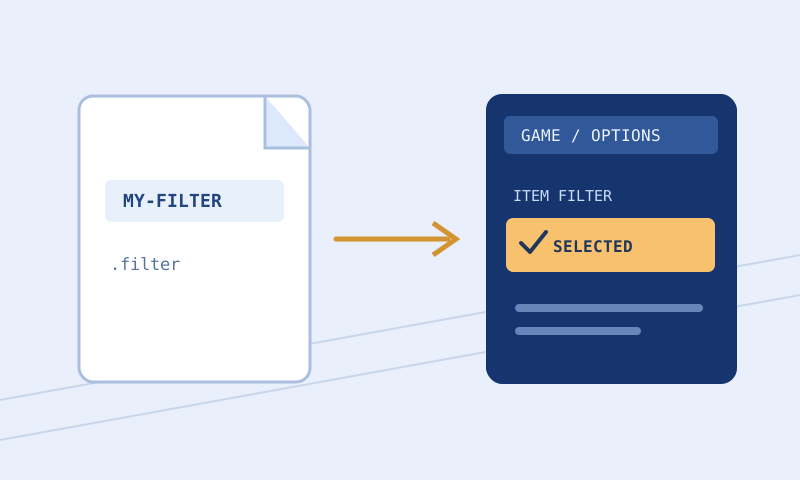
Open the relevant filter controls in your current game client. Community workflows describe the selector under Options and Game, but exact labels and placement are not verified here and can change. Select the distinctive filename you prepared. If the client provides a reload control, use it after replacing or editing the file.
Read the client response. A listed filename is not the same as a successful parse, and a successful parse is not the same as correct behavior. If the client reports an error, preserve the exact message and line number. Do not tick the reload check merely because you pressed a control; record whether the intended revision was accepted.
Step 5: observe a recognizable result
Test a visible change that is narrow and easy to recognize. For example, a deliberately chosen border on a category you can reliably identify can help distinguish the new file from the old one. Avoid making every item huge and loud just to confirm activation, because that creates noise and can obscure the rule you are trying to inspect.
Use representative drops when they are available and check important exceptions separately. An item remaining visible does not prove that every wanted item is protected. Custom sounds, minimap icons, and effects need their own observations. The browser tools cannot verify local audio availability or exactly reproduce the game’s rendering.
Using the embedded checklist
The interactive checklist on this guide records your progress for the selected game in this browser when local storage is available. Its boxes reflect your actions, not a filesystem scan or an account connection. Leave a step incomplete when its result is uncertain. Switch games deliberately so that a finished first-game setup does not stand in for a second-game installation.
Browser cleanup, private browsing, blocked storage, and a different profile can remove or isolate saved progress. Keep a separate note if you need a durable installation record. Include the file revision, actual folder, and any unresolved client message rather than only a percentage complete.
Common problems and fixes
The file does not appear in the selector
Check the game, full extension, destination directory, and operating-system user in that order. Inspect the file contents to ensure you saved filter text rather than a download error page. Look for a current refresh or reload control. If those checks pass, investigate platform support and file permissions using current documentation rather than assuming the filename is the only possible cause.
The file appears but will not load
Use the client’s line-numbered message as the starting point. Run the exact installed text through the Filter Validator. Repair the first credible structural problem before chasing later errors. A game-specific keyword, an unavailable import, or a mode restriction can require current documentation review even when the text looks plausible.
The file loads but the old appearance remains
Confirm the selected filename, then compare the installed copy with the new export using Filter Compare. If they match, inspect whether an earlier terminating rule prevents your edited block from applying. Reload and rule matching are separate causes with similar visible symptoms.
A custom sound is silent
Check whether the relevant item reaches the sound action before investigating the audio file. Then confirm its relative path, filename, and availability in the client environment. A browser warning without a supplied file inventory means availability is unverified, not necessarily missing. Sound volume and supported formats also need current client confirmation.
Examples of a safe maintenance routine
For a small style revision, preserve the old file, export a new filename, compare the two, validate the new text, select it in the client, and observe the specific style. Only after that sequence should you consider replacing your everyday filename. The extra copy prevents a failed experiment from leaving you without a familiar filter.
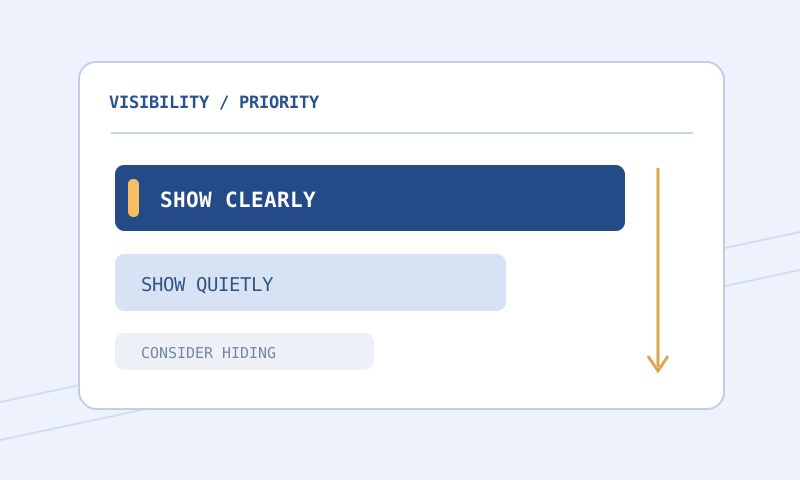
For a strictness revision, add a visibility review before installation. List the categories that become hidden and confirm that none supports an active crafting or progression goal. Test wanted boundary cases with the browser’s supported evaluator, record unknown results, and retain the more permissive file until you have enough client evidence.
Frequently asked questions
Can this site synchronize a filter with my account?
No. It does not provide OAuth, account linking, or remote activation. Its builder exports a local file and its checklist records your progress in the browser.
Is the example Windows folder guaranteed?
No. It is a qualified community-described example. Prefer the current client’s folder control and verify the actual path, especially when Documents is redirected.
Can I rename a text file to .filter?
A genuine plain-text filter can use that extension. Renaming unrelated HTML, rich text, or an archive does not convert its contents into valid filter instructions.
Do I need to reinstall after every edit?
You need the intended edited file in the correct location and the client to load that revision. The available reload workflow depends on the current client; verify it locally.
Does one successful label prove everything works?
No. It confirms only a limited observation. Rules for other categories, hidden items, dependencies, and custom audio remain separate checks.
What should I do on an unsupported platform?
Consult current official platform guidance and the controls actually available there. This guide does not claim console or alternative operating-system support from an untested Windows example.
Continue learning
Use the standalone setup checklist for a focused repeat installation. Read the Path of Exile 1 guide, Path of Exile 2 guide, and sound and color guide for the decisions that come after installation. The primary language source is GGG’s item-filter reference; its review date should never be mistaken for an in-game test date.