How to Read Loot Filter Rules Without Guessing
Read block headers, conditions, actions, order, and imports from real filter text before testing a representative item.
Last reviewed: 2026-09-30. Verification note: GGG filter language documentation reviewed 2026-09-30; current client behavior not verified in game.
Begin with the text, not the color of a drop
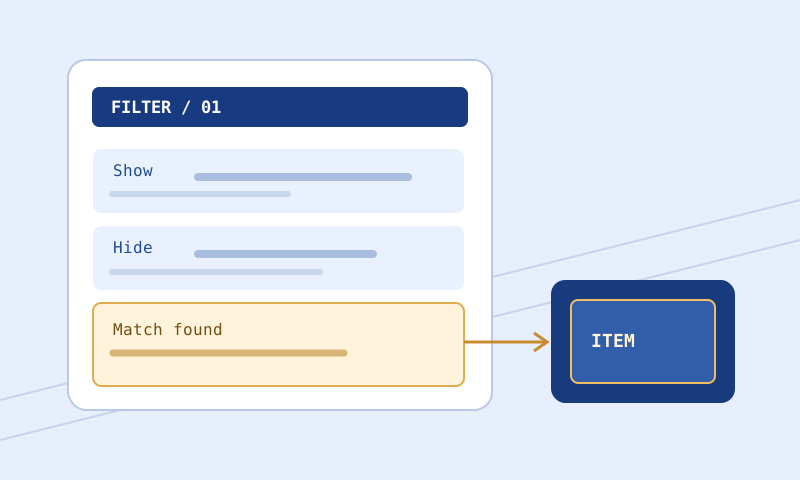
A loot filter is an ordered text program, not a list of independent labels. Its block headers, conditions, presentation actions, and continuation decisions work together. To understand a result, first identify which file is actually selected in the game, then read that file from top to bottom. A visible item might match a Show block, remain visible under default behavior, or receive style changes from multiple relevant blocks. A hidden item might be affected by a broad rule you did not expect. This guide teaches a disciplined way to inspect written rules; it does not claim that a browser explanation can replace the game’s parser.
The constructed examples below assume PoE 1 Normal mode and only the shown lines unless the text says otherwise. They demonstrate language-reading questions, not useful economy tiers. PoE 2 and Ruthless can differ in supported conditions or headers. Check the current official language reference before transferring an example to another mode. The documentation was reviewed on September 30, 2026; no current client patch was tested for this guide.
Step 1: identify boundaries and comments
A line beginning with Show, Hide, or, in its supported context, Minimal introduces a rule block. Subsequent condition and action lines belong to that block until another header or another top-level statement changes the context. A comment beginning with # describes intent for people; it is not itself a condition. Blank lines help people scan the file but do not establish a new matching priority. Indentation makes blocks readable, yet indentation by itself is not a substitute for the actual header. Keep both the raw text and line numbers in view while investigating an error.
For example, this is a small constructed fragment:
# A narrow visible category
Show
    Rarity Rare
    ItemLevel >= 75
    SetTextColor 255 220 180

# A separate rule, not an extension of Show
Hide
    Rarity Normal
    ItemLevel < 10
The first header begins a Show block and the second begins a Hide block. The color line is an action within the Show block, not a condition. The comments explain the author’s intention but do not prove that the intended behavior is achieved. The blank line after the color does not erase the first block’s meaning; the Hide header marks the next block.
Step 2: separate matching conditions from actions
Conditions ask whether an item qualifies. In the example, Rarity Rare and ItemLevel at least 75 narrow the first block. Actions request a presentation detail such as SetTextColor; the Show or Hide header expresses a visibility decision. Do not read a color as proof of rarity or value. An author can color an ordinary item brightly or style a rare one faintly. Likewise, a condition that mentions a base type says what text the rule attempts to match; it is not a live price lookup.
For a boundary check, compare an assumed complete item at item level 75 with the same relevant properties at 74. Under the example’s first written condition, 75 meets >= 75 and 74 does not. That conclusion concerns the condition only, not the final visibility of either item in an unseen larger filter. If a prior matching rule terminates evaluation, the first block here may never be reached. If the item’s copied text lacks a needed property, a browser tester should report uncertainty instead of pretending to know its outcome.
Step 3: read order before claiming a final result
List the relevant blocks in file order, not alphabetical order and not by which one looks most specific. For each one, ask whether its conditions apply to your actual item and whether evaluation continues. An early broad block can shadow a later narrow one. A line that looks like an exception in the lower half of a file does not automatically override a previous matching decision. Read Continue as control flow that may permit further matching, not as a comment or a generic reassurance that the filter keeps working.
Suppose a file begins with Show followed by Rarity Rare, and later has Hide with Rarity Rare and ItemLevel < 50. Under the usual first-matching terminating pattern without Continue, a rare item below 50 can be caught by the first Show before reaching the later Hide. This is a constructed illustration of ordering, not a complete file prediction. Check the actual surrounding lines and the language reference for control-flow details. Moving the Hide above the Show is a behavioral edit, even if no condition text changes.
Step 4: inspect strings and operators literally
Quoted strings are exact source text worth preserving during editing. In BaseType "Broad Sword", the space inside the quoted base name is part of the value. A typo in a class or base name may give you a syntactically plausible rule that matches fewer items than intended. Compare operators carefully: ItemLevel > 75 excludes level 75 while ItemLevel >= 75 includes it. That one-character difference can matter more than an entire page of palette edits. Do not assume that a browser can infer which string you meant to write.
Read multiple conditions within one block together. A Show with Rarity Rare and ItemLevel at least 75 is not two independent Shows: the block is trying to target items satisfying its condition set. If you are unsure about a particular instruction’s game-specific semantics or whether multiple values are alternatives, consult the official reference for that keyword instead of generalizing from another condition. Some documented features lie outside this site’s tools’ supported subset.
Step 5: account for imports and dependencies
An Import references other filter text. A parent file’s visible lines do not necessarily show all the rules the client uses when it loads its dependencies. Check the path, whether the referenced file is available in the client environment, and the imported file’s own contents. A browser text reader cannot freely open an arbitrary local path named in an Import. If the tool reports an unresolved import, that means the dependency was not supplied to that tool; it does not prove that the installed dependency is missing.
For an audit, list each import beside the parent revision and inspect the referenced source separately. If a teammate sends only the parent file, ask for the dependency or mark your conclusion as limited to the parent. Avoid pasting two files together and presenting the concatenation as the exact file your game loaded unless you have verified the language’s placement and resolution rules. A changed dependency can explain behavior even if the parent file’s comparison shows no textual differences.
Step 6: use the right browser aid for the question
Use Filter Rule Explorer to browse line-numbered blocks, search their raw snippets, and read bounded plain-English descriptions. Its descriptions are reading aids, not item-match verdicts. Use Filter Validator to find supported syntax errors and warnings. Use Item Tester with representative complete copied item text when you need a bounded matching result. It may return unknown for unsupported semantics, missing properties, or unresolved imports; unknown is not the same as Show or Hide.
Before relying on a screenshot of an explorer card, locate the line in the complete source. Search results may omit preceding relevant blocks or imported dependencies, and pagination may hide further matches until you visit another page. Use Filter Formatter only to normalize leading layout; it is not a rule sorter or repair tool. For a deliberate change, put the original and revised source into Filter Compare and inspect exact operators, strings, and order.
Worked review: a surprising low-level rare
Assume a PoE 1 Normal file has a first block that Shows all Rare items without Continue and a later block that Hides Rare items under level 50. Assume an item has known Rare rarity and level 42. Write those facts down before running a test. The item satisfies the first block’s written condition. Because the first applicable block normally terminates without Continue, the later Hide is not a safe explanation for this item in that scenario. A reader who looks only at the lower Hide could reach the opposite conclusion.
To repair the intention, first decide whether you really want low-level rares hidden. If yes, design a narrow earlier rule or revise the broad rule thoughtfully, then compare the old and new text. Test level 49 and 50 as boundary examples and check other important rare-item exceptions. This is a procedure to perform, not a report of an in-game test. The browser’s result and the client’s actual loaded revision should be checked separately.
Checklist for a reliable interpretation
Record the exact filename and game or mode. Read top-level statements and imports. Find the block header and its source line number. Distinguish conditions from style actions. Compare operators and quoted arguments character by character. Follow order and Continue behavior. Test at least one intended match, one intended non-match, and a boundary case when a numeric condition matters. If a tool says unknown, identify the missing information before offering a verdict. Finally select and reload the intended revision in your client and observe important drops when available.
If you cannot find the cause, do not delete unfamiliar rules until the page looks simpler. Back up the file and follow the error troubleshooting guide. For editing and rollback, use the safe edit procedure. The authoritative filter-language starting point is GGG’s item-filter documentation; this guide is an independent explanation of how to ask better questions of your own text.