Troubleshoot Loot Filter Errors Step by Step
Separate file discovery, parser errors, missing dependencies, stale selections, and surprising drops without erasing the evidence.
Last reviewed: 2026-09-30. Verification note: GGG filter language documentation reviewed 2026-09-30; client UI and current patch behavior not verified in game.
Diagnose the failure stage before editing rules
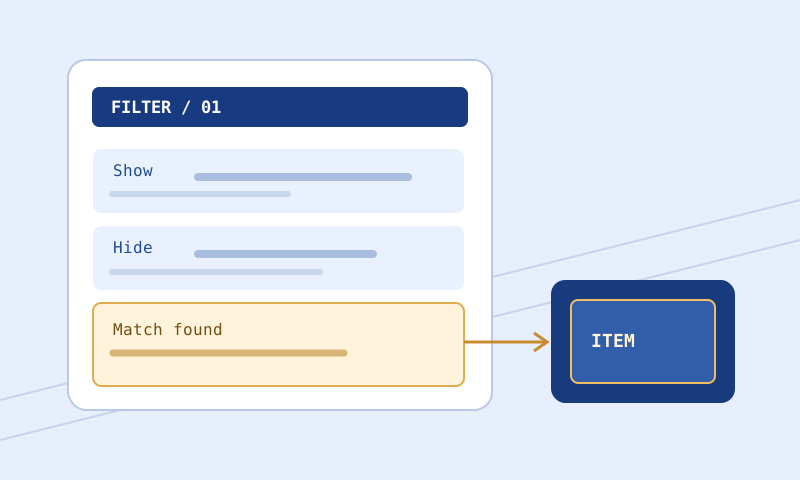
When a filter seems broken, changing a Hide rule at random may make the situation worse. First establish which stage failed: the client cannot find the file, it finds but rejects the file, it loads a different or old revision, or it loads the intended revision but a rule behaves differently from your expectation. These stages need different evidence. A browser validator can help with supported syntax; it cannot verify the client’s directory, selection, imports, or all in-game behavior. Keep a known-good copy until you know which stage you are fixing.
This guide describes a cautious local-file workflow, not an official support process. Game menus and filesystem locations vary by platform and may change. The language documentation was reviewed September 30, 2026; a documentation review is not a claim that the latest client build or installation paths were tested. Use current client controls and official platform guidance where available.
Start an incident note
Write down the game, mode, platform, full filename including extension, intended revision, and what you actually observed. Copy the exact client error and line number if one appears. Note whether the problem began after a download, manual edit, import change, or change in the selected filter. Avoid paraphrasing an error from memory: a line-numbered parse failure differs from ‘the label looked unchanged.’ Save the failing file as evidence before making corrections; do not overwrite the only copy that reproduces the issue.
When sharing a minimal example, remove private comments, local usernames, and irrelevant paths. Preserve the exact suspicious line, its enclosing block, and nearby statements needed to understand order. An isolated line can be useful for syntax, but a section-only snippet cannot prove full-file reachability or import behavior. Mark the example as constructed if it was not copied from the installed file.
Case 1: the client does not list your filter
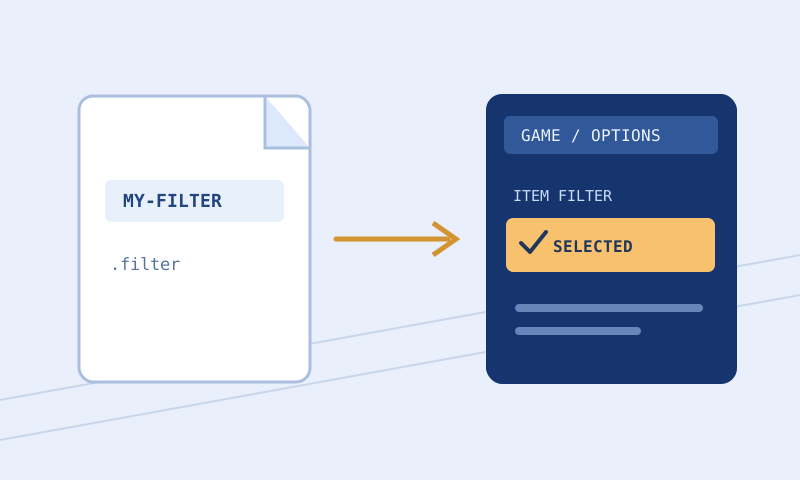
Confirm you are using the correct game client and a supported local-file workflow for your platform. Prefer a current client control that opens its filter directory if one is available. Inspect the complete filename: a file manager that hides extensions can display example.filter.txt as example.filter. Check that the content is plain text rather than an HTML download page, rich-text document, or renamed archive. Confirm the operating-system user and actual folder, especially if Documents is redirected by synchronization software. A similarly named folder elsewhere on the machine does not prove the client reads it.
Do not create multiple guessed directories and copy the filter everywhere as a first response. That produces competing stale copies and makes future troubleshooting harder. Identify the location the client really uses. If your environment does not expose the described local-file controls, consult current official platform instructions instead of assuming that a Windows example applies to console or another operating system.
Case 2: the client lists but rejects the file
Preserve the exact message and its line number. Open the installed file itself, not just the draft in your browser, and inspect that line and the lines above it. A missing quote, misplaced header, invalid argument, unsupported keyword, or mode mismatch can make later messages cascade. Repair the earliest credible structural cause first and reload the complete revision. Do not fix ten reported lines independently before checking whether one unclosed string near the top caused them all.
Use Filter Validator with the same game and mode you intend to play. Its report includes supported errors and warnings with line numbers; it is not the game’s own parser. If it flags a color channel outside 0–255, inspect whether the value belongs to a different action before changing it. If the client rejects something the validator accepts, trust the actual client message as evidence for that environment and consult the current language reference. If the validator flags a documented new keyword, do not blindly delete it merely to make a browser report green.
A constructed parse-error exercise
Assume PoE 1 Normal mode. Consider this intentionally faulty text:
Show
    Rarity Rare
    SetTextColor 300 220 180
The 300 channel is outside the validator’s supported 0–255 color range. A considered candidate correction is:
Show
    Rarity Rare
    SetTextColor 255 220 180
This correction removes that specific out-of-range argument; it does not establish that the file is ideal for your character, installed, or accepted by every client version. Save it under a new revision name, rerun a complete-file check, and inspect the client’s response. If the erroneous number was meant as a sound volume, the real fix may instead be to restore the intended action on the correct line, not simply clamp the color.
Case 3: import or sound warnings
An Import names another filter file. A browser that sees only the parent text cannot automatically read arbitrary files from your game directory. An unresolved-import warning means the dependency was not resolved within that browser check; it is not proof of absence on disk. Inspect the referenced filename, available file, case and relative location according to current language instructions, and the dependency’s own validity. Keep parent and dependency revision names together in your incident note.
Likewise, a custom sound path in a filter is not proof that the asset exists, and a browser warning is not proof that it is missing. First determine whether the relevant item reaches the sound rule. Then check the actual file and path in the client environment, supported format and volume according to current documentation, and a controlled in-game observation. Do not ask a web page to browse your entire game folder to settle a path question. A missing sound and a non-matching block can produce the same silence for different reasons.
Case 4: it loads, but the old appearance remains
Check which filename the client actually selected, whether you edited the installed copy or a separate draft, and whether the client has loaded the latest revision. Compare the installed text with your proposed text using Filter Compare. A no-difference report for two supplied texts does not prove that you supplied the right two files; verify the filenames and the text’s first and last lines. If imports are involved, compare dependencies too. Use the current client reload mechanism where available and read its response rather than assuming that clicking a button succeeded.
If the correct text is loaded but a particular item looks unchanged, search for an earlier matching block. A broad Show above a narrow exception can prevent the later block from being reached without Continue. The Filter Rule Explorer can locate line-numbered Show and Hide blocks; it does not evaluate an item or resolve imports. Use the Item Tester with representative complete copied item data for its supported conditions, and retain any unknown result as uncertainty.
Case 5: wanted items disappear
Treat this as a high-priority configuration problem even if the filter passes syntax checks. Roll back to the known-good file or a more permissive setup before trying more aggressive edits. Identify the exact item properties that matter to your character, then trace candidate Hide and Minimal blocks in order. Check whether a broad category or threshold inadvertently includes wanted bases, crafting supplies, or progression items. One successful test of a valuable-looking item does not cover every boundary case. Build a small test matrix with both wanted and unwanted examples and inspect the actual client behavior.
For example, a proposed Hide with Rarity Normal and ItemLevel below 10 is not a universal safe recommendation. It may suppress a low-level base you intentionally want. Your decision depends on your own use case, earlier rules, mode, and supported game syntax. Temporarily making the file more permissive is often safer than trying to patch a narrow exception while you still do not understand the broad rule.
Case 6: conflicting or incomplete browser results
Different tools answer different questions. A formatter adjusts leading layout, not semantics. A validator checks its supported syntax subset. A comparator shows differences between two supplied texts. An explorer indexes written blocks. An item tester evaluates only supported conditions with supplied properties. None independently proves that your client selected and loaded the same file. If an item test says unknown because of missing properties, unsupported semantics, or an import, do not replace unknown with an optimistic Show verdict.
When reports disagree, verify their inputs first: same revision, same game and mode, same imported dependencies, and complete item text where needed. Then isolate a small reproducible case without losing full-file context. Check the current official item-filter reference for a disputed keyword. Capture both the browser scope note and exact client error when reporting a bug; an incomplete-work message or oversized-file rejection is not a clean validation.
Close the loop, then retain the evidence
Make one intentional fix, save it as a new revision, compare to the failing source, validate the complete text, and reload the selected file. Observe the behavior related to the original problem and at least one important unaffected exception. Record what changed and what remains unverified. Do not erase the failing file until you have a reproducible explanation and a working rollback. For a preventive workflow see Safely Edit and Test a Loot Filter; for source-order reading see How to Read Loot Filter Rules. Browser checks help narrow a diagnosis, while the client remains the authority for actual loading and displayed loot.