Safely Edit and Test a Loot Filter
Keep a rollback file, make one intentional change, compare and validate the revision, then confirm it in the client with representative cases.
Last reviewed: 2026-09-30. Verification note: GGG filter language documentation reviewed 2026-09-30; no current patch or in-game edit test verified.
Make a reversible change, not a mystery replacement
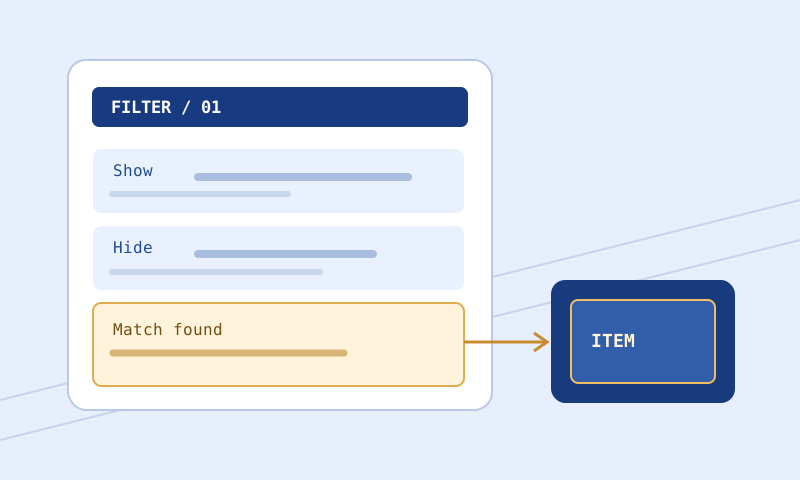
Editing a loot filter is easy to start and hard to evaluate if you change too much at once. A single Hide condition can suppress items you still need; a style edit can be obscured by an earlier rule; a changed import can alter behavior even when the parent file appears identical. This guide proposes a repeatable local-file revision process: keep a baseline, write down the intended effect, make one bounded change, compare, check supported syntax, test representative items, then confirm the intended file in the client. It is not a report that these steps were run in a current game patch.
The examples assume PoE 1 Normal mode and deliberately simple text. Do not use the sample exclusions as universal recommendations or transfer them unmodified to PoE 2 or Ruthless. The site’s language documentation review is dated September 30, 2026, not a live verification date. Consult the current official reference for game- and mode-specific features and trust actual client errors over an incomplete browser model.
Step 1: preserve a baseline and its dependencies
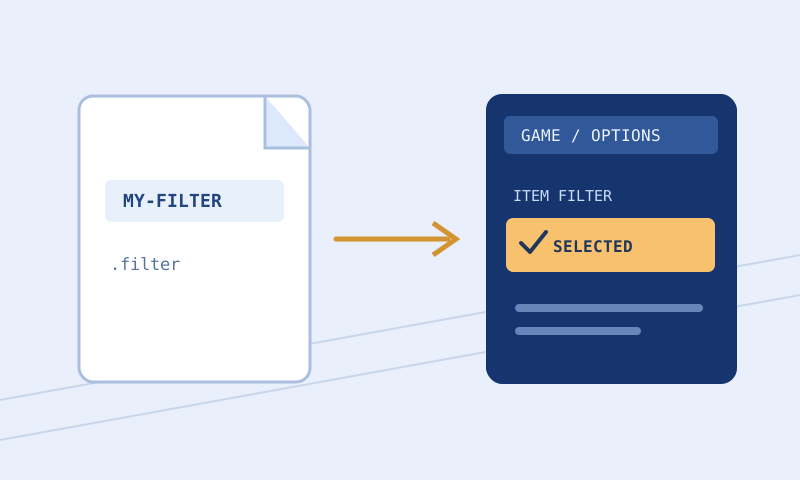
Copy the known-good file to a separate location before opening it in an editor. Give it a descriptive name containing the game and a revision label; keep the untouched baseline outside any save path that your editing program overwrites automatically. If the file has Import statements, preserve the referenced files and note which versions were in use. A parent-only backup can fail to reproduce behavior if its dependency later changes. Record the filename currently selected in the client so that you do not mistake a successful draft edit for a successful installation.
Write one sentence stating the change you want. For example: ‘Make one known rare category easier to notice without changing visibility.’ That is testable. ‘Improve my filter’ is not. State a risk too: ‘Do not change Hide decisions or the label on other rare items.’ The explicit non-goal helps you review a diff and tells you what to test after installation.
Step 2: find the relevant rule before changing it
Open the source as plain text. Use Filter Rule Explorer to search and page through line-numbered Show, Hide, and Minimal blocks if the file is lengthy. Read the raw snippet and neighboring earlier blocks, not just its short explanation. The explorer indexes source text; it neither evaluates a supplied item nor opens imported dependencies. If the rule you want to edit is in an imported file, locate that actual file and back it up too.
Identify conditions, visibility header, presentation actions, and any Continue. Check the exact operator and quoted strings. In a long filter, a block name in a comment is not necessarily the block that matches your item. If you cannot explain why the current rule applies, pause the edit. Follow the rule-reading procedure and gather a representative copied item rather than changing the first similar-looking color line you find.
Step 3: make one small, visible revision
For an illustrative style-only change, assume the baseline contains:
Show
    Rarity Rare
    ItemLevel >= 75
    SetTextColor 200 200 200
A proposed revision changes only the last line:
Show
    Rarity Rare
    ItemLevel >= 75
    SetTextColor 255 220 180
Both snippets are constructed examples for PoE 1 Normal; they are not complete recommended filters. The intended textual change is a color action, not a new threshold or a new Hide. The example does not prove that all such rare items will show that color in a larger file, because earlier matches and continuation can matter. Save the candidate under a distinct filename instead of overwriting the baseline.
If source indentation is distracting, Filter Formatter can normalize leading indentation and blank lines. Use it separately from the functional edit where possible so the diff remains legible. Formatting does not repair unknown keywords, reorder blocks, change quotations, or resolve imports. Preserve the original file before using Copy or Download, and do not treat browser Undo as a permanent backup.
Step 4: compare what changed, including order
Put the baseline on the left and candidate on the right in Filter Compare. Check the exact line diff, not just its changed-block count. For the example, the intended difference is only the three text-color numbers; the rarity, threshold, header, and position should remain unchanged. A changed operator, missing comment, new Import path, or moved block is a separate decision to investigate. Comparator grouping can represent a moved block as removed and added; it is not a forensic history of your editing actions.
If the file imports dependencies, compare those versions independently when relevant. An empty parent diff does not prove a stable installed configuration. Keep the two original source files as well as any downloaded JSON report. A report alone cannot reconstruct every file you need for rollback, and local paths or private comments may appear in shared diff text.
Step 5: check syntax without mistaking it for safety
Run the complete saved candidate through Filter Validator using the intended game and mode. Read errors before warnings and pay attention to its supported-syntax scope. A valid flag means this browser’s implemented checks found no errors in the supplied text; it does not mean every item you want remains visible or that your client accepted the file. An unresolved Import warning is a prompt to check the dependency, not proof that it is missing. A custom sound warning likewise cannot settle whether an asset exists on your machine.
If a syntax error appears, repair the first plausible cause, recompare, and validate again. Do not repeatedly switch game selectors to obtain a passing report if the intended environment is different. For a dispute about a newly documented instruction, consult GGG’s filter reference rather than deleting unfamiliar syntax automatically. A browser tool can lag documentation or cover only a subset.
Step 6: build a small test matrix
Test at least one item expected to meet the edited rule, one expected not to, and one boundary case. For the constructed example, item levels 74 and 75 with the same relevant Rare rarity distinguish the written threshold; a representative rare item above it checks the intended style category. These are conditions to examine, not fabricated results from a game test. Include any important exception that must remain visible, especially when you edited Hide or strictness. If actual copied item data is incomplete, mark the test unresolved.
Use Item Tester for its supported item properties and rule subset. An unknown result caused by an unsupported condition or unresolved import is a reason to investigate, not evidence of success. In a full file, inspect earlier rules that might intercept the item and any Continue effects. A test of one item cannot demonstrate safe behavior across all bases or progression goals. If a change broadens a Hide, prefer an additional permissive review before proceeding.
Step 7: confirm the actual client revision
Move or save the candidate using the current client-supported local-file method for your platform, select its distinctive filename, and reload if the client offers that action. Verify the client’s response. The installation guide explains why extension visibility, the actual destination folder, and the selected file matter. A file in Downloads is not necessarily a file the client can read. A listed filename is not necessarily accepted, and a successful load alone is not proof that the desired item behavior changed.
When suitable drops are available, observe the intended category and at least one unaffected category. Record the candidate revision, client response, and what was observed. Audio and visual effects should be checked separately if they are part of the change. Do not claim a browser palette preview reproduces every in-game terrain or lighting context. If the client rejects the file, capture the exact line and error rather than making an undocumented edit in place.
Rollback and incident handling
If wanted items disappear, the client reports errors, or the change cannot be explained, reselect the known-good version and confirm it loads. Keep the failing candidate and notes to diagnose later; do not erase evidence simply because rollback restored normal play. Use the troubleshooting guide to distinguish parser failure, wrong directory, stale selection, and rule-order problems. If the baseline itself imported a changed file, restore or review the matching dependency as well.
Only after a satisfactory client check should you decide whether to replace the everyday filename. Retaining several labeled revisions is often less risky than a single overwritten file, provided you can still recognize which one is selected. A revision note with the purpose, exact file name, relevant dependencies, and unresolved questions is more useful than ‘fixed filter.’ Repeat the cycle for the next independent change instead of stacking several untested edits.
Common shortcuts that fail
Formatting and editing in one large pass makes the diff noisy. Validating a draft while installing another file tests the wrong artifact. Assuming all Hide matches are bad, or all Show matches are safe, ignores the player’s goals. A passing syntax report cannot prove reachability or intent. Testing only a positive example misses boundary mistakes. An imported file or custom sound outside the supplied text remains unverified. The safer pattern is boring but auditable: baseline, one change, exact diff, bounded tests, client check, rollback path. When uncertainty remains, leave the known-good filter active and record the question rather than overstating confidence.