Loot Filter Builder
Choose a game and starter preset, edit category visibility and RGBA styling, inspect the generated rules, then download an original .filter file.
Workspace
Your filter input is processed in this browser, not sent to the website for analysis.
Build an original starter filter
Normal mode only. No economy tiers or account sync. Strict and higher hide low-level Normal or Magic body armour, never Rare or Unique through preset rules. Useful crafting bases may still be hidden. Manual Hide hides the entire selected category. Unmatched items remain shown. RGBA fields accept four integers (0–255).
Inspect an existing filter (read-only)
This interactive tool needs a modern browser with JavaScript and local worker support. Processing stays on your device.
Verification note: GGG filter documentation reviewed 2026-09-30; current patch and in-game behavior not verified.
Build a filter you can explain
A loot filter is a decision list, not an item valuation service. This builder generates an original starter file from the categories in its selected PoE 1 or PoE 2 dataset. It does not fetch live prices, know your crafting project, or reproduce a third-party filter. Use its generated text to understand the decisions behind each preset and keep a known working file available while trying a new export.
Choose the game and preset first
Select Game before adjusting anything else. Then select a Starter preset. Changing either reloads starter settings; changing the preset replaces category styles rather than preserving your existing edits. The live policy description tells you exactly what the preset hide does. Soft, Regular, and Semi-Strict hide nothing through preset rules: they change emphasis of starter categories. Strict hides Normal body armour below item level 30, Very Strict below 60; Uber Strict hides Normal and Magic body armour below 60; Uber Plus Strict hides Normal and Magic body armour below 75. The rule uses ItemLevel, not your character’s level or the item’s price.
These narrow Hide blocks appear before category Show blocks in the generated file. They do not hide Rare or Unique body armour. A useful low-level crafting base could still be hidden, so inspect the policy instead of assuming the preset is economically safe. The generator ends in a Show fallback for unmatched items. These are Normal-mode starter exports; Ruthless is not a builder option.
Edit one category at a time
The Item category selector chooses the category whose controls appear in the editor. Show/Hide changes the entire selected category in its generated category block. Manual Hide is broader than a preset’s low-level body-armour exception. For each category, edit text, background, and border as four 0–255 RGBA integers; font accepts an integer from 1 through 45. Sound offers None or a built-in ID 1–16, volume 0–300. Size selects minimap icon size -1 (off) or 0–2; icon, shape, and effect are separate choices. The approximate label preview shows the selected style, even when its label says Hidden category: a rendered browser sample does not undo the actual Hide rule.
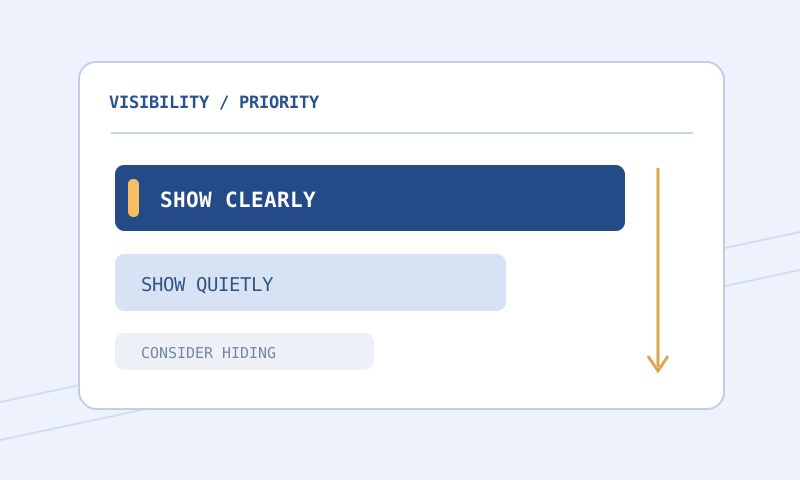
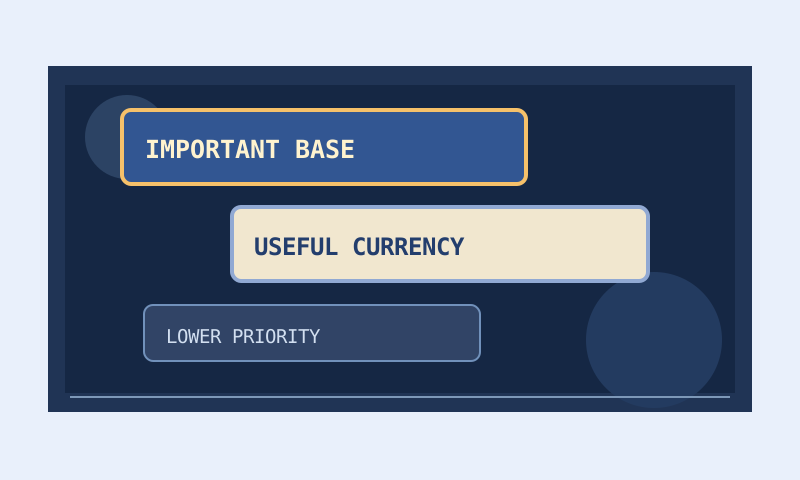
Make visibility decisions before decoration. Ask which equipment, currency, and progression drops you still need. If a needed item has no dedicated starter category, preserve visibility and consider a carefully reviewed custom rule. Giving every category a loud sound and large font destroys hierarchy just as effectively as hiding wrong drops. Reserve a strong border or alert for categories you will actually stop to collect.
Worked example: a cautious Strict export
Choose PoE 1, select Strict, leave category Show settings at defaults, and look at generated output. The preset section begins with a Hide block for the equipment dataset’s body-armour class, Rarity Normal, and ItemLevel < 30. The later equipment Show block does not revive an item that matched that earlier terminating Hide. A Normal body armour at item level 29 is hidden by this preset; one at 30 misses the less-than-30 condition and can match the category Show. A Rare body armour at 29 misses the Normal-only Hide. This is a supported policy illustration, not a promise about an item whose class does not match the dataset.
Now choose equipment and change its Show control to Hide. The generated category block changes to Hide for that whole listed category. A Rare item that previously avoided the narrow preset Hide may now meet manual category Hide. Compare output before and after; do not interpret a bright browser preview as proof it remains visible. Undo can return to a previous settings snapshot. Use Reset if you need to start again from the selected game and preset.
Inspect and export actual text
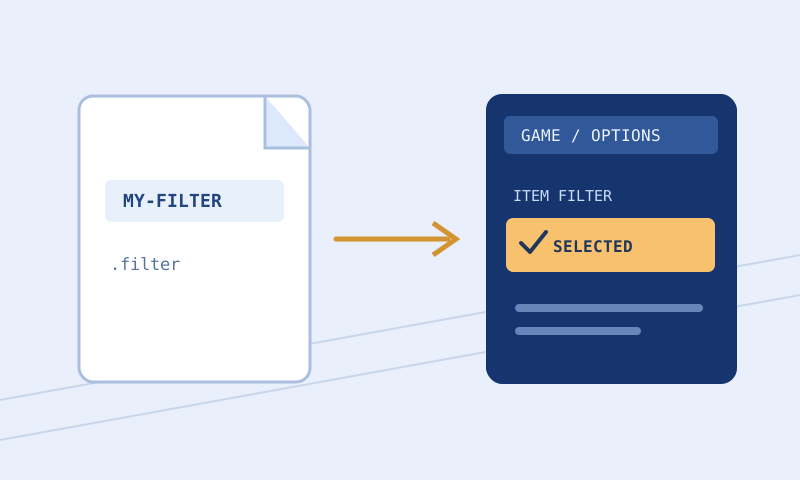
Generated text appears in Tool result as you change settings. Read header, policy comment, narrow preset Hide if any, category blocks, and final fallback. Copy result copies that text. Download result saves filterblade-starter.filter; give revisions distinct names before placing them into a game folder. Neither button selects a filter in the client or synchronizes an account. The output is a starter, not a comprehensive item database. Validate the exact exported file and test wanted items before depending on exclusions.
Save settings locally stores structured choices in this browser; Load saved settings restores them if available. Put settings in URL puts encoded settings in the address fragment for sharing. This shares supported builder settings, not an installed .filter file, market data, or custom audio assets. Opening a shared address still warrants checking Game, preset, category visibility, and generated source yourself. Browser storage can be cleared; keep a downloaded filter and revision note as durable copies.
Existing files are inspection inputs, not editable imports
Expand Inspect an existing filter (read-only), load or paste a file, then press Inspect source. This runs supported validation and displays diagnostic JSON plus a syntax-colored source preview for shorter files. It does not populate category controls, convert existing rules into the starter model, or guarantee a lossless round trip. A source preview is omitted above 50,000 characters, though the worker still validates accepted input. For an existing long file, Filter Rule Explorer can index Show, Hide, and Minimal blocks by line number and instruction keyword; it does not evaluate item matches or resolve imports. If your custom file has intricate imports, exceptions, or special sounds, edit its original source rather than replacing it with a smaller builder export.
When inspection and generation disagree
Suppose you inspect a personal file with an Import and custom sound. Inspection can warn that imported rules are unresolved and sound availability unverified, while builder output shows only starter categories. This is expected: Inspect source never replaces builder settings. If you press Download result afterward, the downloaded .filter is the starter shown in Tool result, not the inspected file. Preserve your personal file separately; do not infer that read-only inspection converted its special cases into editable switches.
If a category color field rejects three channels, enter all four including alpha. For example, 240 240 240 255 is accepted as complete text RGBA, while a bare RGB triplet is not. If sound volume is out of range or font size exceeds 45, status shows an error and no valid new generated output is committed. Correct the control, check updated Tool result, then copy or download. A previous output remains an older snapshot, not proof that the new invalid value was accepted.
When something looks wrong
A category seems missing: The starter dataset is intentionally limited; unmatched items meet the Show fallback unless a prior rule matches. Do not infer an unlisted item is worthless. A preview looks right but a drop does not: Check exported source, earlier terminating rules, installed filename, and reload state. The browser preview is not a game renderer. An export fails to load: Retain the file and client error, select the correct game in Filter Validator, and consult the official reference for game-specific or newly changed instructions.
For a focused farming session, create a separate revision rather than overwriting your broad progression file. Compare both with Filter Compare, inspecting Hide and Show differences before cosmetics. Filter Formatter can tidy leading indentation and blank lines in a manually edited revision, but it cannot turn that file into builder controls or repair invalid rules. Color and Contrast Palette can refine readability without changing selection logic. A successful download starts a local testing workflow; it does not finish one.
Continue with a safe installation
Follow the safe revision procedure, the installation guide, and the strictness guide. For unfamiliar syntax consult GGG’s filter reference. Documentation was reviewed September 30, 2026, but a builder preview and browser validation are not current-client compatibility tests.